 Stepshots
How to find your LinkedIn URL
Every LinkedIn profile has a web address, and sooner or later something asks for it: a resume template, a job application form, an email signature. LinkedIn doesn't exactly put it front and center. This guide shows how to find your LinkedIn URL in two clicks — and how to turn the default ending into a clean, professional one while you're there.
Steps
- Open your own profile
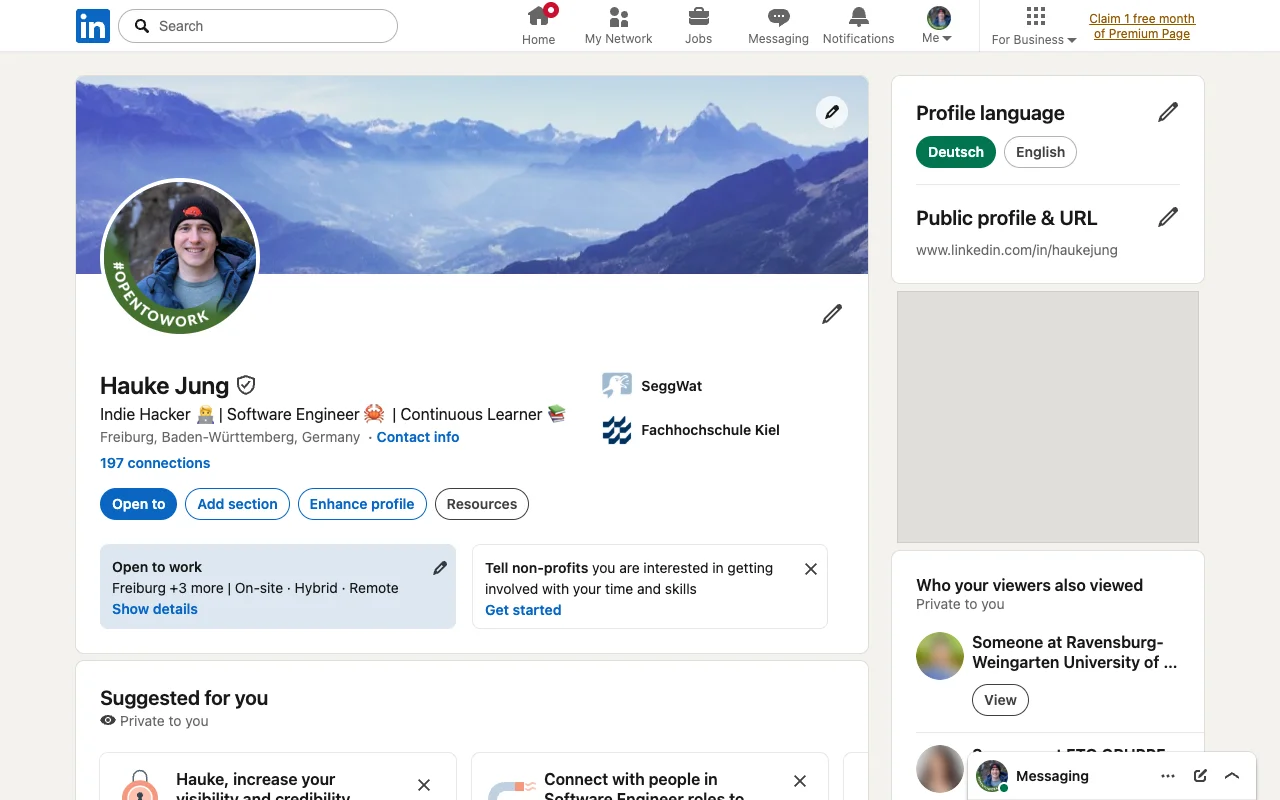
Click your photo ("Me") in LinkedIn's top navigation and choose View Profile.
- Click "Edit public profile & URL"
It sits in the right sidebar of your profile and opens your public profile settings in a new tab.
- Find your URL
At the top right, under "Edit your custom URL," you'll see it: www.linkedin.com/in/your-name. That's the link to put on your resume, email signature, or portfolio — select and copy it from here.
- Customize it
Click the pencil next to the URL to open the edit box.
- Save your new URL
Type the new ending — 3 to 100 letters or numbers, no spaces or symbols — and click Save. Aim for short and professional, like your name without digits. LinkedIn limits how often you can change it, so pick one you'll keep.
Why find your LinkedIn URL?
A LinkedIn URL shows up in places where first impressions matter — resumes, conference bios, cold emails. The default URL often carries a string of random digits; a customized one reads like a business card. Knowing where the setting lives also puts you one panel away from controlling what your public profile shows to people who aren't signed in, which is worth reviewing while you're there.
Create your own interactive guide with Stepshots
Record any flow, annotate it, and share a clickable walkthrough — no video editing required.
Get started free