 Stepshots
How to turn on private mode on LinkedIn
LinkedIn tells people when you've looked at their profile — which is exactly what you don't want while quietly researching a candidate, a competitor, or your next employer. Private mode makes your profile visits anonymous. The setting exists, it's free, and it's buried three levels deep in Settings. This guide shows how to turn on private mode on LinkedIn and what the profile owner sees instead.
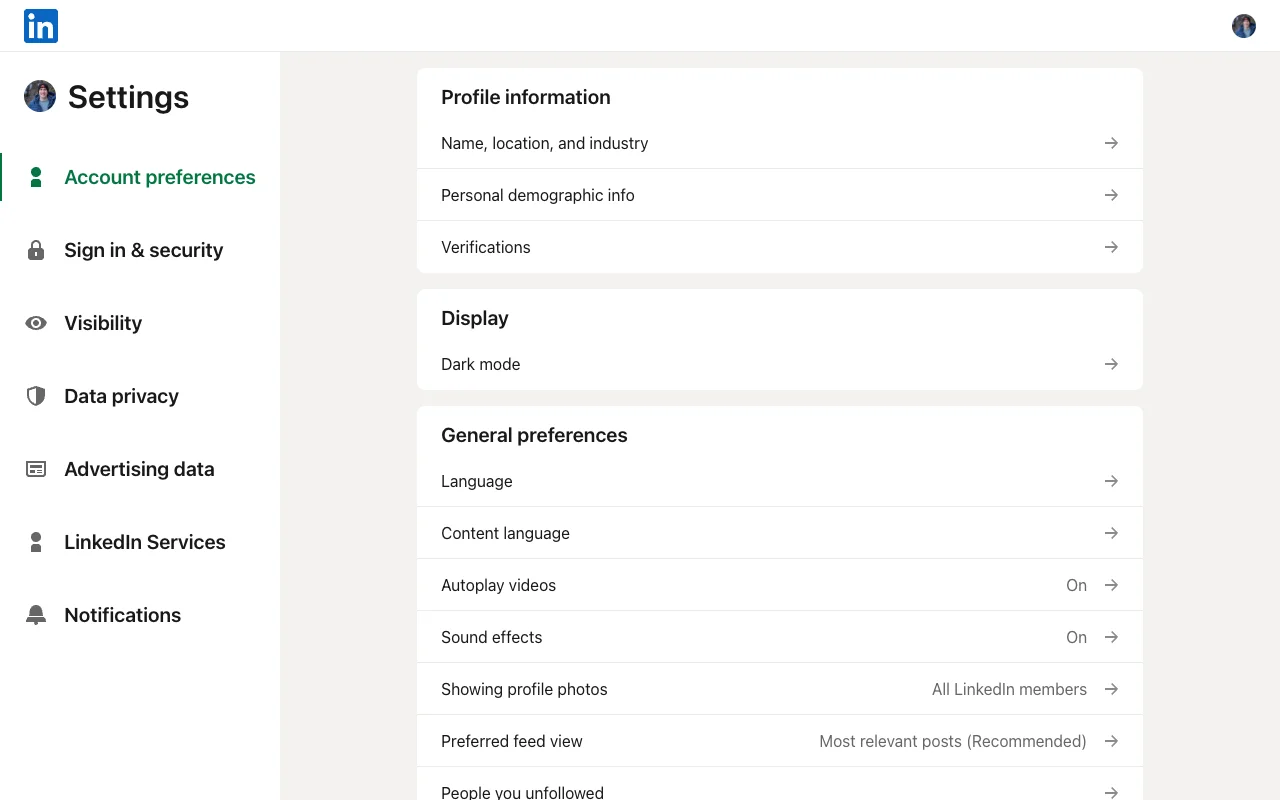
Steps
- Open Settings & Privacy
On LinkedIn, click your profile photo ("Me") in the top navigation and choose Settings & Privacy from the dropdown.
- Go to Visibility
In the settings sidebar, open the Visibility section — it collects everything about who can see you and your activity.
- Open "Visibility when viewing other profiles"
It's the first entry under profile visibility and controls what people see when you've visited their profile.
- Select Private mode
Three options appear: your name and headline, private profile characteristics (a semi-anonymous description like "Someone in the software industry"), and Private mode. Pick Private mode.
- You now browse anonymously
The change saves automatically — the preview switches to "Anonymous LinkedIn Member," which is all a profile owner will see when you visit. Note the trade-off shown on the page: private mode also disables your own Who's Viewed My Profile and erases your viewer history.
Why turn on private mode on LinkedIn?
Profile views are a signal, and sometimes you don't want to send one: sizing up competitors, screening candidates before an outreach, or job hunting while employed. Private mode removes the trace entirely. The cost is symmetry — with private mode on, LinkedIn disables your own Who's Viewed My Profile list and erases your existing viewer history, so many people toggle it on for a research session and back off afterwards.
Create your own interactive guide with Stepshots
Record any flow, annotate it, and share a clickable walkthrough — no video editing required.
Get started free