 Stepshots
How to delete a branch in GitHub
Stale feature branches pile up fast, and a cluttered branch list makes it harder to see what's actually in progress. This guide shows how to delete a branch in GitHub from the web interface — both from the repository's Branches page and directly from a merged pull request — plus how to restore one if you remove it by accident.
Steps
- Open your repository on GitHub
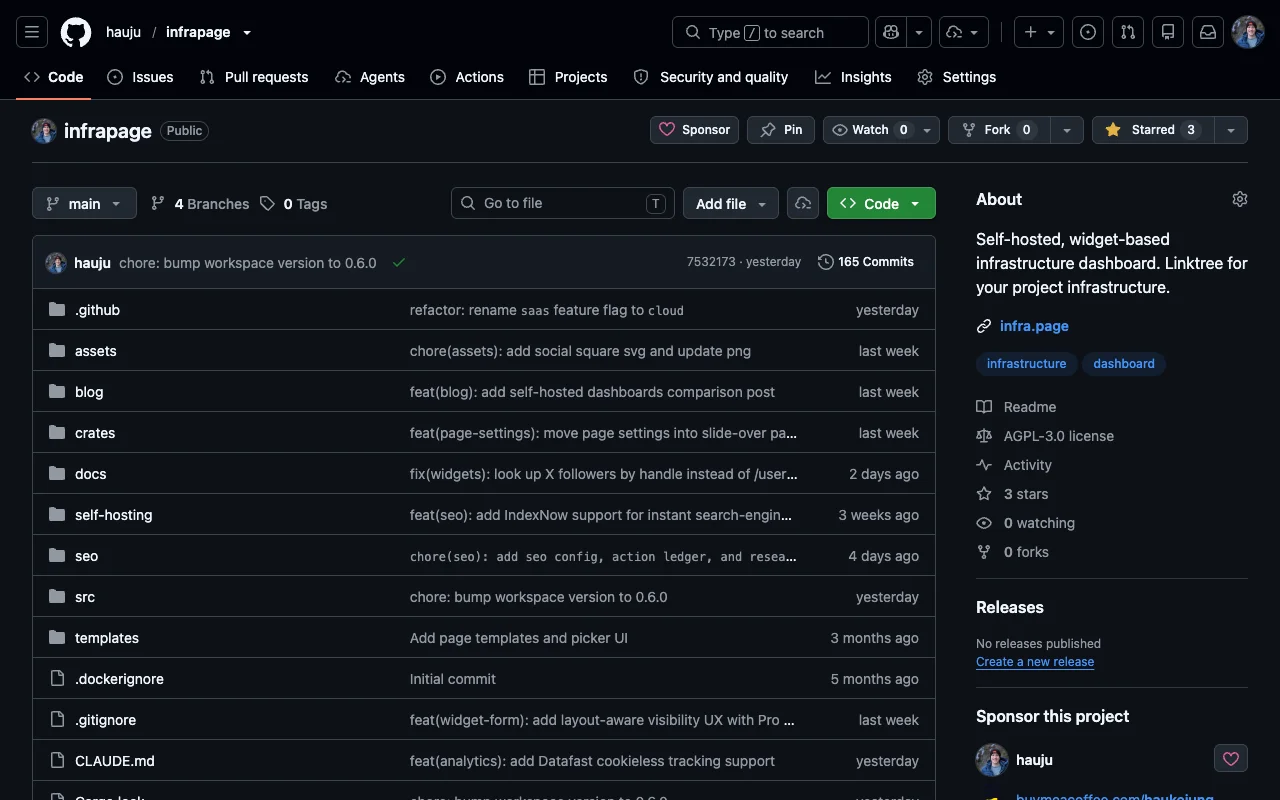
Sign in to GitHub and go to the repository that contains the branch you want to remove. The branch count sits next to the branch picker at the top of the code view.
- Open the Branches page
Click the branch count (for example "4 Branches"), or add /branches to the repository URL. This page lists every branch with its latest activity.
- Switch to All branches
The Overview tab only shows recent activity — click the All tab to list every branch, including stale ones that are overdue for cleanup.
- Find the branch to delete
Locate the branch in the list, or filter by name with the search box above it. Check its ahead/behind counts first: a branch that is ahead of the default branch still has unmerged work.
- Delete the branch
Click the trash-can icon on the right of the row. GitHub deletes the branch immediately — there's no confirmation dialog. Tip: after a pull request is merged, the PR page also offers a "Delete branch" button, which is the tidiest way to clean up the moment work lands.
- Restore it if you change your mind
Deletion isn't final right away: the row flips to "Deleted" with a restore arrow that brings the branch straight back. Merged or closed pull requests that used the branch also show a "Restore branch" button, as long as its commits haven't been garbage-collected.
Why delete a branch in GitHub?
Deleting branches after their work is merged keeps a repository readable: the branch list reflects active work instead of months of history, and collaborators aren't left guessing which branch is current. GitHub preserves the full commit history in the merged pull request, so removing the branch loses nothing you'll miss — and you can always restore it if you need it back.
Create your own interactive guide with Stepshots
Record any flow, annotate it, and share a clickable walkthrough — no video editing required.
Get started freeMore GitHub tutorials
How to delete a repository in GitHub
Delete a GitHub repository from Settings → Danger Zone, including the type-to-confirm dialog — and what to know before it's gone for good.
How to see all branches in a GitHub repository
See every branch in a GitHub repository from the Branches page — active, stale, and all branches with ahead/behind status. Quick visual guide.