 Stepshots
How to delete a repository in GitHub
Deleting a repository is one of the few GitHub actions with no self-serve undo, so the option is deliberately tucked away at the bottom of the settings page. This guide shows how to delete a repository in GitHub step by step, including the guided confirmation dialog that walks you through the consequences before anything is removed. If what you really want is to retire a project while keeping its history readable, consider archiving it instead — that's reversible.
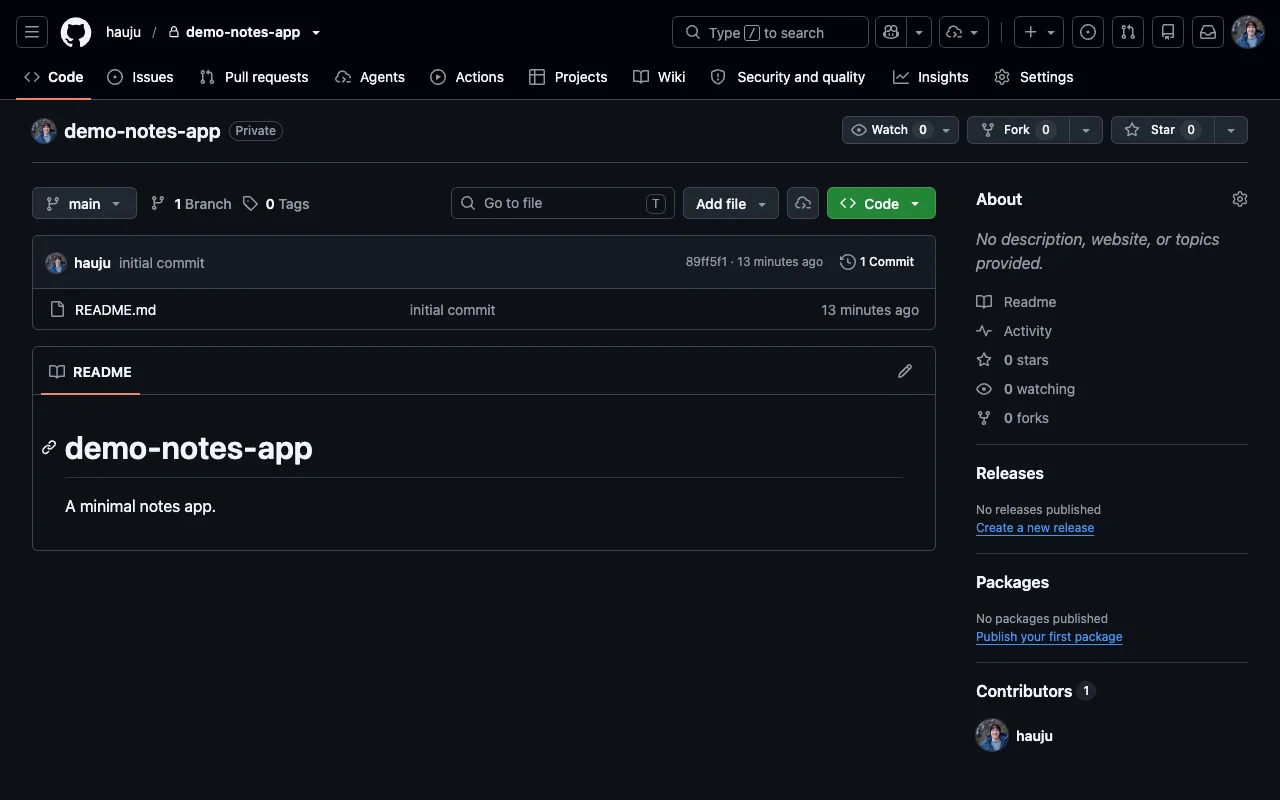
Steps
- Go to Settings
Open the repository and click the Settings tab. Deleting a repository is only available to owners and admins — if the tab is missing, you don't have the permission.
- Scroll to the Danger Zone
Deletion lives at the very bottom of General settings, in the red-bordered Danger Zone, alongside visibility changes, ownership transfer, and archiving.
- Click "Delete this repository"
It's the last entry in the Danger Zone. Clicking it opens a guided confirmation dialog — nothing is deleted yet.
- Confirm you want to delete
GitHub first shows the repository with its stars and watchers and asks you to confirm that you really want to delete it.
- Acknowledge the effects
The second screen spells out what will be permanently lost: code, releases, issues, pull requests, and all associated data. Forks of your repository are not deleted.
- Type the repository name
To rule out accidents, type the full owner/repository name into the confirmation box.
- Delete the repository
The red button only enables once the name matches exactly. Click it, and the repository is gone.
- Deletion is confirmed
GitHub returns you to your repositories with a confirmation banner. There is no self-serve undo — support can sometimes recover a repository within about 90 days, but treat deletion as final.
Why delete a repository in GitHub?
Old experiments and abandoned forks accumulate fast, and every stale repository is one more thing collaborators can stumble into and one more surface to secure. Deleting what you no longer need keeps your profile an honest index of real work — and frees the repository name for future use. Just be certain before you type the name: unlike deleting a branch, this action has no restore button.
Create your own interactive guide with Stepshots
Record any flow, annotate it, and share a clickable walkthrough — no video editing required.
Get started freeMore GitHub tutorials
How to delete a branch in GitHub
Delete a branch in GitHub from the Branches page or a merged pull request — and restore it if you removed it by mistake. Step-by-step guide.
How to see all branches in a GitHub repository
See every branch in a GitHub repository from the Branches page — active, stale, and all branches with ahead/behind status. Quick visual guide.